Make text yours.
Choose from fonts such as OpenDyslexic and Lexend, then adjust text size, word spacing, letter spacing, line height and alignment.
Adjust the page until reading feels comfortable.
Reader Mode 3.0 in development
Designed for readers with dyslexia, ADHD, visual impairments and diverse reading needs.
Available today: Reader Mode 2.0 for Chrome Reader Mode 3.0 is a ground-up rebuild and is still in development.
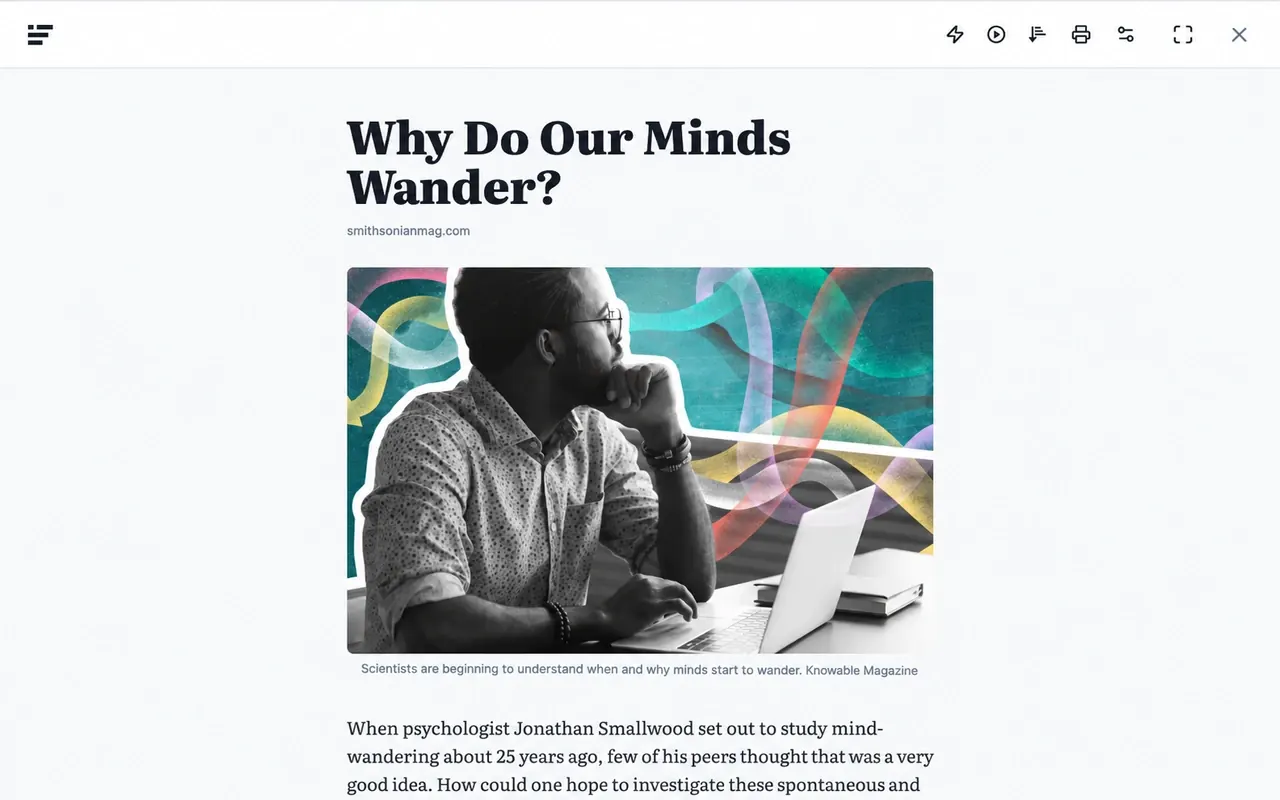










Adjust fonts, text size, spacing, colours, contrast and zoom to create a reading view that works for you.
Choose from fonts such as OpenDyslexic and Lexend, then adjust text size, word spacing, letter spacing, line height and alignment.
Adjust the page until reading feels comfortable.
Adjust colours, contrast and saturation to create a reading view that feels comfortable for you.
Zoom the page and add a page overlay to adjust the whole reading view to suit your preferences.
Add structure, visual anchors and a clear place to return to with tools designed for steadier reading sessions.
Give reading sessions a clear beginning and end with a calm timer that stays close while you focus.
Bold the first part of each word to create visual anchors that make scanning and re-entry easier.
Select any passage, choose a colour, and keep important ideas easy to find when you return.
Turn webpages, PDFs and supported documents into audio. Choose a voice, adjust the pace and follow the words as they’re read aloud.
Reading doesn’t always have to be about finishing quickly. Giving yourself time to follow an idea can make the experience feel calmer and easier to stay with.
Follow one line or section at a time with Line Ruler, Focus Ruler and Dyslexia Ruler, designed to reduce the amount of surrounding content competing for your attention.
Follow the exact line you’re reading as you move through the page.
Keep a reading window visible while reducing the surrounding visual noise.
Use a tinted reading band to make the section you’re following easier to locate.
Open PDFs in a more adaptable reading view with text-to-speech, reading rulers, visual adjustments and focus tools. Highlight important text, add notes and shape the page around the way you prefer to read.
A simplified preview of Reader Mode’s PDF experience. Some tools are illustrative and interactions may differ in the full product.
A practical guide to adaptable digital documents.
Digital documents are easier to work with when readers can adjust the environment around the content. Flexible presentation can make long-form material more comfortable to navigate without changing the document itself.
Accessible reading works best when the interface stays understandable: the document remains central, while optional tools are available when they are useful.
Useful reading controls can include zoom, visual adjustments, text-to-speech and guides that help a reader keep their place. The goal is not one universal layout, but a reading view that can respond to different preferences.
Presentation controls can alter the viewing environment while preserving the meaning and structure of the original document.
Supporting attention, navigation and comprehension.
A reading ruler can make it easier to keep one line or section visually distinct while moving through dense material. Text-to-speech offers another route through the same content when listening is useful.
Visual adjustments can change the viewing environment without editing the PDF itself. Zoom, overlays and contrast controls can be combined with reading guides to create a more comfortable working view.
Clear navigation becomes more important as documents grow longer. Thumbnails and a table of contents help readers understand where they are, return to earlier sections and move between ideas with less friction.
When these controls live in one consistent reading environment, the document stays central while the interface adapts around the reader.
Adjust colours, zoom and reading tools around your preferences.
Read PDF text aloud while keeping the spoken words connected to the page.
Use reading rulers and focus tools while moving through longer documents.
Reader Mode 3.0 is designed around accessible reading from the start — with adaptable presentation, keyboard access, reduced motion and tools for different ways of reading, focusing and listening.
Adjust how content is presented around the way you prefer to read.
Reach important reading controls without relying on a mouse.
Respect motion preferences and avoid unnecessary animation.
Use readable hierarchy, visible focus states and understandable controls.
Read on the web, save what matters, and come back to it later with your reading tools close at hand.
A reading environment works best when the page can adapt around the person using it.
Cleaner presentation, useful reading tools and fewer competing distractions can help the content stay central.
The goal is not one perfect layout, but a view that can change with the way someone prefers to read.
Saved just now · 8 min
PDF · 18 pages
Saved yesterday · 6 min
Turn the page you’re on into a cleaner Reader Mode view.
Use visual, focus and listening tools around your preferences.
Save articles and PDFs to your Reader Mode library and return when you’re ready.
Quick answers about Reader Mode, accessibility tools, PDFs, text-to-speech and saved reading.
Reader Mode is an accessibility-first reading tool for the web. It turns cluttered webpages into a clean, distraction-free reading experience and gives you control over how you read, focus and listen.
Yes. The current Reader Mode Chrome extension is available to install now. Reader Mode 3.0 is still in development, and you can join the early-access list for updates.
Reader Mode lets you adjust fonts, text size and spacing, page colours, overlays, reading rulers and text-to-speech around your preferences. There is no single reading setup that works for everyone, so these controls can be combined and changed as needed. Explore dyslexia-friendly reading.
Yes. Reader Mode includes text-to-speech controls for reading webpages aloud, including voice, speed and word-highlighting options.
Reader Mode 3.0 includes an adaptable PDF reading experience with navigation, zoom, text-to-speech, reading tools, highlighting and notes. The PDF experience is part of the Reader Mode 3.0 rollout.
Reader Mode 3.0 is being designed to make PDF reading more adaptable with reading rulers, text-to-speech, zoom, focus tools and visual controls. Readers can combine these options around the way they prefer to read.
Reader Mode includes distraction controls, reading rulers, word highlighting, auto-scroll, speed-reading controls and an ADHD Timer that can be used to add structure to a reading session. Explore ADHD & focus tools.
Reader Mode 3.0 is designed to let you save articles and PDFs to your reading library and return to them later, with your reading tools and preferences close at hand.
No. Reader Mode is not a replacement for a dedicated screen reader. It provides reading, focus and visual-adjustment tools that can complement the accessibility setup you already use.
Existing users: log in
Coming in 3.0
Part of the 3.0 roadmap
Current extension
Real posts from dyslexic readers, researchers, educators and focus-seekers who made Reader Mode part of the way they read.
I just started using Reader Mode to get back into reading articles and blog posts and I’m loving it so far! Consistent dark mode, dyslexia fonts and ruler, and ability to annotate notes!
13
The web has gotten less and less accessible to people with #ADHD over the years. @ReaderMode is a precious tool to help us reclaim our attention.
6
I was looking for a tool for distraction-free online reading, and I’m so happy to have found @ReaderMode. Their ‘deletion’ feature is magic.
2
This extension was built with dyslexic readers in mind but can be helpful to others as well.
46
Chrome Reader Mode — a good extension for students with dyslexia.
3
No ads, clutter and distraction-free? I love @ReaderMode — it lets me cut down on all these, and my reading experience feels so much better!
3
I spent my career writing CSS, making sites and apps pretty, but I absolutely love and heavily use Reader Mode, which strips all webpages clean.
14
My random tool today: a distraction-free online web reader with text-to-speech.
3
Join the early-access list for Reader Mode 3.0 and be among the first to try a more adaptable, distraction-free way to read.
Product updates only. Unsubscribe anytime. Privacy
Already use Reader Mode? Log in
Founding Members
Founding Membership is $25 one-time and includes early Reader Mode 3.0 builds, a private Founder Circle on Discord, member-only polls, and one full year from launch.
Learn about Founding Membership